

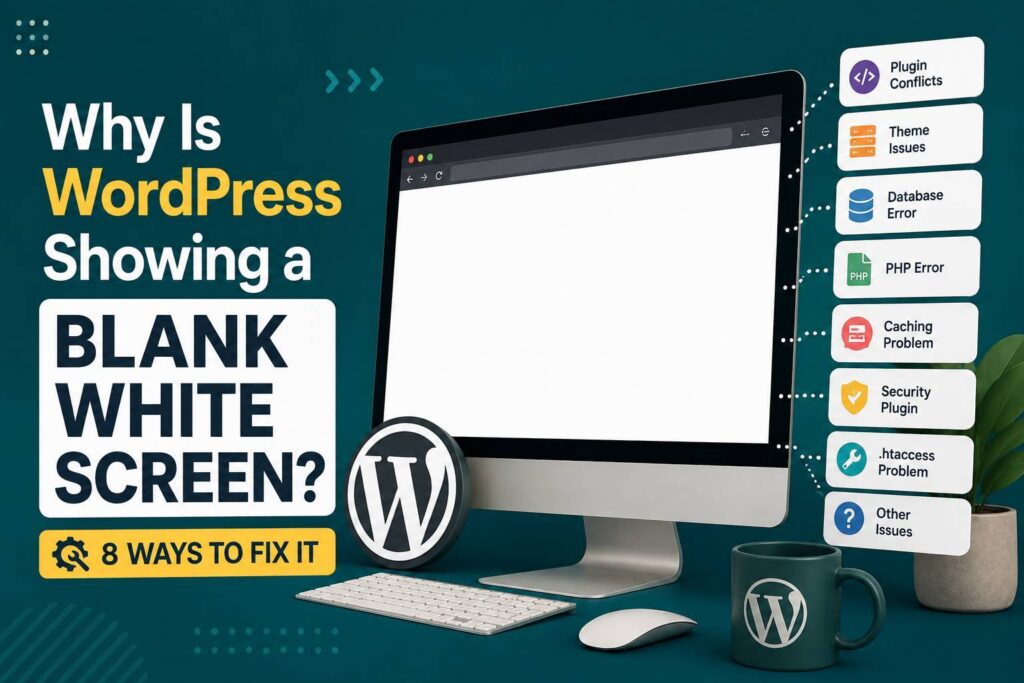
Seeing a WordPress blank white screen can be alarming. Your website may suddenly show nothing but a completely white page, while the WordPress admin dashboard may also become inaccessible. This problem is commonly known as the WordPress White Screen of Death (WSOD).
A blank screen usually means WordPress encountered a serious PHP error or another problem that prevented the page from rendering properly. Plugin conflicts, theme issues, insufficient PHP memory, outdated software, and corrupted files are some of the common causes.
Fortunately, you can troubleshoot the problem systematically without immediately rebuilding your website.
What Causes the WordPress Blank White Screen?
The WordPress blank white screen can happen for several reasons, including:
- A plugin conflict
- A theme compatibility problem
- PHP errors
- Insufficient PHP memory
- An outdated WordPress version
- A faulty plugin or theme update
- Corrupted WordPress files
- Server configuration problems
- Database issues
The first step is to determine whether the problem affects your entire website, only specific pages, or the WordPress admin area.
1. Clear Your Browser and Website Cache
Before making technical changes, try clearing your browser cache.
Sometimes an outdated cached file can make a website appear broken even when the server is working correctly.
Try opening your website in:
- A private or incognito window
- Another browser
- Another device
If the website works elsewhere, your browser cache or an extension may be causing the problem.
You should also clear your WordPress caching plugin and CDN cache if you use them.
If clearing the cache doesn’t solve the issue, continue with the next troubleshooting step.
2. Disable WordPress Plugins
A faulty or incompatible plugin is one of the first things you should investigate.
A plugin update may introduce a PHP error or conflict with another plugin, your WordPress version, or your active theme.
If you can access the WordPress dashboard:
- Go to Plugins → Installed Plugins.
- Select all plugins.
- Choose Deactivate.
- Check your website again.
If the website starts working, reactivate the plugins one at a time.
When the blank screen returns, you’ve likely identified the problematic plugin.
What If You Can’t Access WordPress Admin?
You can deactivate plugins through your hosting file manager or FTP.
Open:
/wp-content/plugins/
You can temporarily rename the plugins folder to something such as:
plugins-disabled
Then check your website again.
If the website loads, a plugin is likely responsible.
3. Switch to a Default WordPress Theme
If disabling plugins doesn’t fix the problem, your theme may be responsible.
A theme can cause a blank page when it contains incompatible code, outdated functions, or errors after a WordPress or PHP update.
If you can access the dashboard, go to:
Appearance → Themes
Then activate an available default WordPress theme.
If the website starts working after switching themes, your previous theme may be causing the problem.
This doesn’t necessarily mean the theme is permanently broken. It could be a compatibility issue that can be resolved by updating the theme or contacting its developer.
4. Increase the PHP Memory Limit
WordPress requires enough PHP memory to execute plugins, themes, and other processes.
If your website exceeds its available PHP memory, it may display a blank screen instead of a normal error message.
This can happen when:
- You use resource-heavy plugins.
- Your theme requires significant resources.
- Your website processes large files.
- Multiple plugins perform demanding tasks simultaneously.
You can check your site’s available resources through WordPress Site Health or your hosting control panel.
If the memory limit is too low, ask your hosting provider whether it can be increased.
Don’t simply increase server limits without checking your hosting plan and configuration.
5. Check for PHP Errors
PHP errors are another common cause of a blank WordPress page.
If the problem started immediately after:
- Updating a plugin
- Updating a theme
- Changing PHP versions
- Installing custom code
- Updating WordPress
there may be a compatibility issue.
Check your hosting control panel for PHP error logs.
The error may identify the specific plugin, theme, file, or function causing the problem.
For example, an error referencing a particular plugin directory can provide a strong clue about where to investigate.
6. Enable WordPress Debugging
If you can’t identify the cause, WordPress debugging can provide additional information.
You can enable debugging through the wp-config.php file.
A typical debugging configuration uses:
WP_DEBUG
and
WP_DEBUG_LOG
The log can help identify PHP errors without displaying sensitive error details directly to visitors.
For a live website, avoid displaying PHP errors publicly. Logging errors is generally safer than exposing technical information to visitors.
After identifying and fixing the problem, disable debugging or configure it appropriately for your production environment.
7. Check WordPress Files and Recent Changes
Sometimes the problem is caused by damaged or modified WordPress files.
Think about what changed immediately before the blank screen appeared.
Did you:
- Install a new plugin?
- Update WordPress?
- Change your PHP version?
- Modify the theme?
- Add custom code?
- Move the website to another host?
- Change server settings?
The timing can help narrow down the cause.
If core WordPress files are suspected, use a clean copy of the same WordPress version to replace damaged core files while preserving your wp-content directory and configuration.
Always create a complete backup before replacing files.
8. Restore a Recent Backup
If none of the troubleshooting steps work and you have a recent reliable backup, restoring the website may be the quickest solution.
This can be particularly useful when the blank screen appeared immediately after a major change.
Before restoring, determine what caused the problem if possible. Otherwise, the same issue could return when you repeat the change.
After restoration, update plugins, themes, WordPress, and PHP carefully and test the website after each major change.
When Should You Contact Your Hosting Provider?
Sometimes the WordPress blank white screen isn’t caused by WordPress itself.
Contact your hosting provider if you suspect:
- Server resource limits
- PHP configuration problems
- Server errors
- File permission issues
- Database problems
- Security rules blocking requests
- Hosting-level timeouts
Give your hosting provider the exact time the problem started and any error messages you found.
This can help them check server logs more efficiently.
How to Prevent the WordPress Blank White Screen
You can reduce the risk of future problems by following a few basic practices:
- Keep WordPress updated.
- Update plugins and themes regularly.
- Remove unnecessary plugins.
- Use reputable themes and plugins.
- Maintain regular backups.
- Test major updates carefully.
- Monitor PHP compatibility.
- Avoid adding untested custom code.
- Keep your hosting environment properly configured.
It’s also useful to make a backup before performing major WordPress updates or configuration changes.
Conclusion
A WordPress blank white screen can look like a serious website failure, but the underlying cause is often identifiable.
Start with the simplest checks: clear your cache, disable plugins, test your theme, and review recent changes. If the problem continues, investigate PHP memory, error logs, debugging information, WordPress files, and your hosting environment.
The most important thing is to troubleshoot systematically. Changing multiple settings at the same time can make it harder to identify the actual cause.
With a recent backup and a step-by-step approach, you can usually find the source of the problem and restore your WordPress website without rebuilding it from scratch.