
A WordPress website needs regular care to stay secure, fast, and reliable. That’s why WordPress website maintenance should be part of your regular routine, even if your website appears to be working perfectly.
Over time, outdated plugins, security vulnerabilities, broken links, database clutter, slow-loading pages, and indexing problems can affect your website. Some issues may remain unnoticed until they start affecting visitors or search rankings.
The good news is that most common problems can be identified with a simple monthly check.
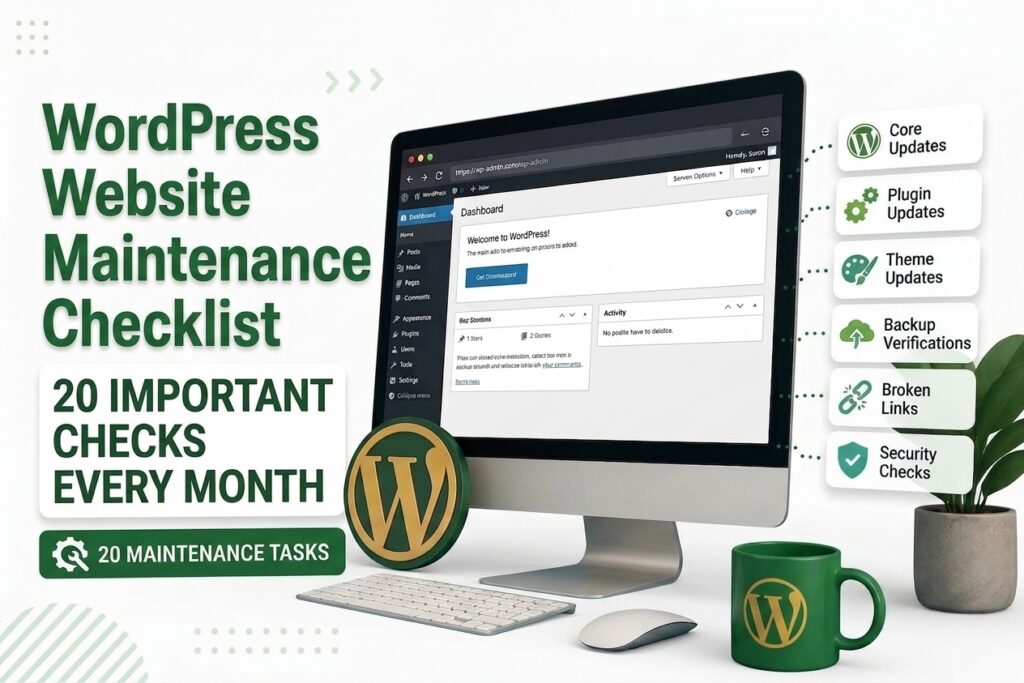
In this guide, you’ll find a practical WordPress website maintenance checklist covering 20 important tasks you should review every month.
Why Is WordPress Website Maintenance Important?
WordPress websites rely on several components working together, including the WordPress core, plugins, themes, hosting server, database, and third-party services.
When one component becomes outdated or stops working correctly, it can affect the rest of your website.
Regular maintenance can help you:
- Improve website security
- Prevent unexpected errors
- Keep plugins and themes compatible
- Maintain website speed
- Protect important website data
- Find broken links
- Monitor indexing problems
- Improve the visitor experience
- Reduce the risk of downtime
You don’t have to spend hours maintaining your website every day. A thorough monthly review can catch many problems before they become serious.
20 WordPress Website Maintenance Tasks to Check Every Month
1. Check for WordPress Core Updates
Start your monthly maintenance by checking whether WordPress has a new version available.
WordPress updates can include security fixes, bug fixes, performance improvements, and new features. Keeping your core installation updated helps protect your website from known issues.
Before performing a major update, create a recent backup of your website.
After updating, visit your homepage and several important pages to make sure everything still works correctly.WordPress Site Maintenance
2. Update Your Plugins
Plugins provide many of the features that make WordPress flexible, but outdated plugins can cause compatibility and security problems.
Open your WordPress dashboard and check for available plugin updates.
Don’t blindly update everything without checking your website afterward. Test important features such as:
- Contact forms
- Navigation
- Search
- Page builders
- Payment features
- Membership functions
- Other important site features
If a plugin hasn’t been updated for a long time, check whether you still need it.
3. Check Your WordPress Theme
Your theme controls much of your website’s visual appearance and layout.
Check whether your active theme has an available update. If you’re using a child theme, make sure your customizations are properly protected.
After an update, check your:
- Homepage
- Header
- Footer
- Navigation menu
- Blog pages
- Buttons
- Mobile layout
This can help you quickly identify unexpected design changes.
4. Verify Your Website Backups
A backup can save your website when something goes wrong.
Check your backup system every month and confirm that recent backups are being created successfully.
Your backup should cover the important files and database information required to restore your website.
It’s also a good idea to keep backups in a separate location rather than relying entirely on the same server where your website is hosted.
5. Test Your Backup Restoration
A backup is only useful if you can restore it successfully.
Periodically test the restoration process in a staging environment or another safe location.
This helps confirm that your backup files are complete and usable.
Don’t wait until your website crashes to discover that your backup system wasn’t working properly.
6. Find and Fix Broken Links
Broken links can frustrate visitors and make your website look poorly maintained.
Check important internal and external links throughout your website.
Pay special attention to:
- Main navigation
- Service pages
- Important blog posts
- Footer links
- Calls to action
- Internal links
If a link points to a deleted or incorrect page, replace it with the correct URL or remove it when appropriate.
7. Review Your Website Security
Security should be a regular part of WordPress maintenance.
Review your administrator accounts and make sure there are no unfamiliar users.
You should also use strong, unique passwords and limit administrator privileges to people who actually need them.
Review your security settings and investigate anything unusual, such as unexpected account activity or changes to website files.
8. Run a Malware and Security Scan
If your website uses a security solution that provides malware scanning, run a scan regularly.
Look for warning signs such as:
- Unexpected redirects
- Suspicious files
- Unknown scripts
- Unfamiliar users
- Pages you didn’t create
- Strange changes to your website
If you find something suspicious, investigate it promptly rather than ignoring it.
9. Check Your SSL Certificate
Your website should load correctly over HTTPS.
Open your website and several important pages to make sure your browser doesn’t display a security warning.
Also test your forms and other interactive features.
If your SSL certificate expires or HTTPS is configured incorrectly, visitors may receive security warnings that can reduce trust in your website.
10. Test Your Contact Forms
A contact form can stop working without being obvious to you.
Once a month, submit a test message through your main contact or inquiry forms.
Confirm that:
- The form accepts the submission.
- The correct confirmation message appears.
- The email reaches the intended inbox.
- Any automated notification works properly.
For business websites, this is particularly important because a broken form can result in missed leads.
11. Check Your Website Loading Speed
Website performance can change as your website grows.
New plugins, large images, scripts, and third-party services can gradually make pages slower.
Run a performance test each month and compare the results with previous measurements.
If your website has become noticeably slower, investigate possible causes instead of simply installing additional optimization plugins.
12. Review Core Web Vitals
Core Web Vitals provide useful information about important aspects of page experience.
Check your important pages for problems related to loading performance, responsiveness, and visual stability.
Focus on pages that receive significant traffic or generate conversions.
Remember that a good performance score is useful, but the real goal is to provide a fast and smooth experience for visitors.
13. Clean Up Your Media Library
Your WordPress Media Library can become cluttered after years of uploading images and other files.
Review your media files and identify obvious duplicates or files that you know are no longer needed.
Be careful when deleting files. An image that appears unused in the dashboard may still be referenced by a page, post, widget, CSS file, or another part of your website.
14. Remove Plugins You No Longer Use
Unused plugins don’t provide value, so there’s usually little reason to keep them installed.
Review your plugin list and remove plugins that you no longer need.
Before deleting one, make sure another part of your website doesn’t depend on it.
It’s also a good practice to keep the number of plugins under control and use reliable plugins that are actively maintained.
15. Remove Unused Themes
Check your installed WordPress themes and remove themes that you no longer need.
Old themes can add unnecessary files to your installation and increase the amount of software you need to monitor.
However, don’t delete a theme until you’ve confirmed that your current website setup doesn’t require it.
16. Review Your WordPress Database
Your WordPress database stores posts, pages, settings, comments, and information created by plugins and other features.
Over time, unnecessary revisions, spam comments, expired temporary data, and other records can accumulate.
Database cleanup can help keep your installation organized, but it should be performed carefully.
Always create a reliable backup before making significant database changes.
17. Check Google Search Console
Google Search Console should be part of your monthly SEO and maintenance routine.
Review your website for unusual changes or technical problems.
Pay attention to:
- Page indexing
- Sitemap status
- Search performance
- Security issues
- Crawling problems
- Search-related errors
If you notice a sudden change in organic traffic or indexed pages, investigate what caused it.
18. Check Important Pages for Indexing
Make sure Google can discover and index the pages you actually want to appear in search results.
Check important service pages, blog posts, category pages, and landing pages.
Look for accidental issues such as:
- noindex directives
- Incorrect canonical URLs
- Blocking robots.txt rules
- Unexpected redirects
- Pages returning errors
Fixing these problems can prevent valuable pages from disappearing from search results.
19. Review Your Website Analytics
Take a few minutes each month to review your website analytics.
You don’t need to analyze every available metric. Start with information that can help you make decisions.
Look at:
- Organic traffic
- Top landing pages
- Traffic sources
- Conversions
- Popular content
- Pages losing traffic
- Changes in visitor behavior
Monthly comparisons can help you spot problems and identify opportunities to improve your content and website.
20. Test Your Website on Mobile Devices
Your website may work perfectly on a desktop computer but still have problems on smartphones.
Test your website on mobile devices and check the pages that matter most.
Make sure:
- Navigation menus work
- Buttons are easy to tap
- Text is readable
- Images fit the screen
- Forms work correctly
- Pop-ups don’t block important content
- Pages don’t have unwanted horizontal scrolling
A good mobile experience is important for both visitors and conversions.
A Simple Monthly WordPress Maintenance Schedule
If checking all 20 items at once feels overwhelming, divide them into four weekly sessions.
Week 1: Updates and Security
- Update WordPress
- Update plugins
- Check the theme
- Review security
- Run a malware scan
Week 2: Backups and Performance
- Verify backups
- Test backup restoration
- Check website speed
- Review Core Web Vitals
Week 3: Website Functionality
- Test contact forms
- Check broken links
- Review media files
- Test mobile functionality
Week 4: SEO and Analytics
- Check Google Search Console
- Review indexing
- Analyze website traffic
- Check important landing pages
This approach makes website maintenance easier to manage throughout the month.
What Should You Check After a Major WordPress Update?
Don’t assume everything is working just because an update completed successfully.
After a major WordPress, plugin, or theme update, visit your most important pages and test the features your visitors use.
For example, a business website should test contact forms and lead-generation pages. An online store should check product pages, shopping carts, checkout, and other important functions.
Testing immediately after an update makes it easier to identify what caused a problem if something stops working.
How Often Should You Maintain a WordPress Website?
The ideal maintenance schedule depends on the type of website.
A small personal blog may only require a detailed monthly review. A business website with regular visitors may need more frequent monitoring.
Ecommerce websites, membership websites, news websites, and websites that process customer information generally require more attention.
At a minimum, perform a complete maintenance review once a month and respond quickly to important security, backup, and performance alerts.
Can You Do WordPress Maintenance Yourself?
Yes. Many website owners can handle basic maintenance themselves.
Simple tasks such as checking updates, reviewing backups, testing forms, and monitoring Search Console don’t necessarily require technical expertise.
However, more complicated tasks such as database optimization, malware removal, server configuration, plugin conflicts, and performance troubleshooting can require technical knowledge.
If you’re unsure about a change, create a backup first or get help from a WordPress professional.
Conclusion
Regular WordPress website maintenance helps you stay ahead of problems instead of discovering them after they have already affected your visitors.
A good maintenance routine should cover more than plugin updates. You should also check backups, security, website speed, forms, broken links, indexing, analytics, and mobile usability.
You don’t need to spend every day working on your website. Set aside time once a month, follow this 20-point checklist, and keep a record of what you’ve checked.
A few minutes of preventive maintenance can save you from much bigger website problems later.