

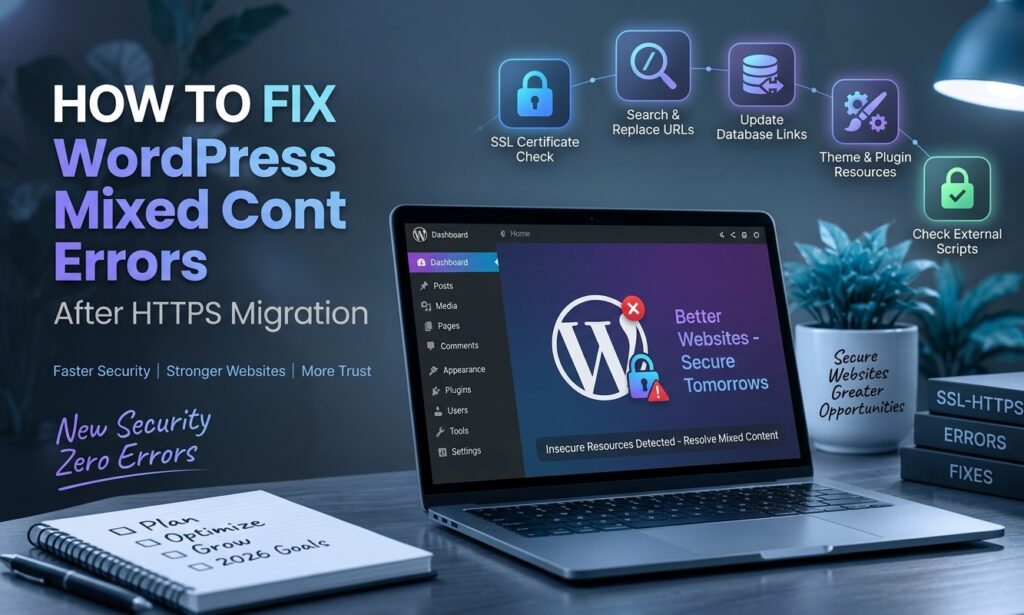
WordPress mixed content errors
Moving a WordPress website from HTTP to HTTPS improves security, but it can sometimes create mixed content errors. These errors happen when an HTTPS page tries to load resources such as images, CSS files, JavaScript, or fonts through an insecure HTTP connection.
Mixed content can prevent some resources from loading correctly and may cause security warnings in browsers. Fortunately, most WordPress mixed content errors can be fixed by updating old HTTP URLs and checking your website’s configuration.
In this guide, you’ll learn how to find and fix mixed content errors in WordPress after switching to HTTPS.
What Is Mixed Content in WordPress?
Mixed content occurs when a secure HTTPS webpage loads one or more resources using HTTP.
For example, your website may use:
https://example.com
But an image on the page may still load from:
http://example.com/wp-content/uploads/image.jpg
The main page is secure, but the image is being requested through an insecure connection. This creates a mixed content issue.
Common resources that can cause these errors include:
- Images
- CSS files
- JavaScript files
- Web fonts
- Videos
- Embedded content
- External scripts
Browsers may block some insecure resources, which can affect the appearance or functionality of a WordPress page.
Why Do Mixed Content Errors Happen After HTTPS?
Mixed content usually appears because some URLs on the website still use the old HTTP version.
Several situations can cause this problem.
Old URLs in the WordPress Database
When a website is migrated from HTTP to HTTPS, existing database entries may still contain HTTP URLs.
These URLs can appear in:
- Posts and pages
- Image URLs
- Theme settings
- Widget content
- Plugin settings
- Custom fields
Hard-Coded HTTP URLs
Some themes or plugins may contain resources with an HTTP URL.
For example:
http://example.com/style.css
This needs to be changed to:
https://example.com/style.css
External Resources
Third-party resources can also create mixed content. Examples include external scripts, fonts, images, advertising resources, and embedded files that are still requested through HTTP.
How to Find Mixed Content Errors
Before fixing the problem, identify exactly which resources are being loaded over HTTP.
One of the easiest methods is to use your browser’s developer tools.
Open the affected page in Chrome and press F12 or right-click the page and select Inspect.
Then open the Console tab.
If the page contains mixed content, the browser may show warnings identifying the insecure HTTP resource.
For example, you might see an HTTP URL for an image, stylesheet, or JavaScript file.
Make a list of the affected URLs before making changes. This helps you determine whether the problem comes from WordPress content, a plugin, a theme, or an external service.
How to Fix Mixed Content Errors in WordPress
1. Check Your WordPress URLs
Start by checking the main WordPress URLs.
Go to:
WordPress Dashboard → Settings → General
Look for:
- WordPress Address (URL)
- Site Address (URL)
Both should normally use HTTPS if your website has been completely migrated to SSL.
For example:
https://example.com
rather than:
http://example.com
Save the changes if they are incorrect.
Before making major changes, make sure your SSL certificate is working correctly.
2. Replace HTTP URLs With HTTPS
If your content contains old HTTP URLs, update them to HTTPS.
For example:
http://example.com/wp-content/uploads/photo.jpg
should become:
https://example.com/wp-content/uploads/photo.jpg
Pay particular attention to:
- Images
- Internal links
- Background images
- Video URLs
- Custom HTML
- Embedded content
Do not simply change URLs without checking that the HTTPS version of the resource actually works.
3. Update Old URLs in the Database
A WordPress website can contain thousands of URLs stored in its database.
Manually checking every post, page, and setting may not be practical on a larger website.
A database search-and-replace process can help identify old HTTP URLs and replace them with HTTPS versions.
However, database changes should be handled carefully. Create a complete backup before running a search-and-replace operation.
Also make sure serialized WordPress data is handled correctly. An incorrect database replacement can damage plugin or theme settings.
4. Check Images and Media Files
Images are a common source of mixed content after an HTTPS migration.
Open affected pages and inspect image URLs.
If an image still uses:
http://example.com/wp-content/uploads/
change it to the HTTPS version.
Also check:
- Featured images
- Background images
- Logo URLs
- Gallery images
- Images inside widgets
- Custom theme sections
If the image itself is available through HTTPS, the secure URL should be used.
5. Check Your Theme and Plugins
Themes and plugins can sometimes load resources using HTTP.
If the browser console identifies a CSS or JavaScript file as mixed content, determine which theme or plugin is responsible.
Check:
- Theme settings
- Plugin settings
- Custom code
- Header/footer scripts
- Custom CSS
- JavaScript snippets
Avoid editing plugin or theme core files directly unless you know exactly what you are changing. Future updates may overwrite those modifications.
If an outdated plugin is responsible, updating or replacing it may be a better solution.
6. Check External Scripts and Fonts
Third-party resources can also cause mixed content.
Common examples include:
- Google Fonts
- Analytics scripts
- Advertising scripts
- Chat widgets
- Tracking scripts
- CDN resources
- External JavaScript libraries
If an external resource supports HTTPS, change the URL to its secure version.
If the provider does not offer HTTPS, consider whether the resource is still necessary. An insecure third-party resource should not simply be ignored because it is outside your WordPress installation.
7. Clear Your Website Cache
After fixing mixed content, clear your caching layers.
Depending on your setup, this may include:
- WordPress cache
- Page cache
- CDN cache
- Browser cache
- Server cache
Then reload the affected page and check the browser console again.
Cached versions of old resources can sometimes make it appear that the problem still exists after the underlying URL has been corrected.
How to Prevent Mixed Content After HTTPS
Once your website is working correctly over HTTPS, use a few simple practices to prevent the issue from returning.
Use HTTPS for New Resources
Whenever you add an image, script, stylesheet, font, or external resource, make sure its URL uses HTTPS.
Keep WordPress Updated
Outdated themes and plugins may contain old code or insecure resource references. Keeping your WordPress installation and extensions updated can reduce these problems.
Check Third-Party Resources
Before adding an external script or service, verify that it supports HTTPS.
Monitor Important Pages
After making major changes to your website, check important pages and review the browser console for security warnings.
This is especially useful after:
- Theme changes
- Plugin installations
- Website migrations
- CDN changes
- SSL configuration changes
Final Mixed Content Checklist
Before considering the HTTPS migration complete, check the following:
- WordPress Address uses HTTPS
- Site Address uses HTTPS
- Images load through HTTPS
- CSS files load through HTTPS
- JavaScript files load through HTTPS
- Fonts load through HTTPS
- Internal links use HTTPS
- Third-party resources support HTTPS
- Browser console shows no remaining mixed content warnings
- WordPress and cache layers have been cleared
- Important pages work correctly over HTTPS
Conclusion
Mixed content errors are common after moving a WordPress website from HTTP to HTTPS. The problem usually occurs because some resources still reference the old HTTP version of a URL.
Start by identifying the insecure resources through your browser’s developer tools. Then check WordPress settings, database URLs, images, themes, plugins, and third-party resources. After making the corrections, clear your caches and test the affected pages again.
A complete HTTPS migration should ensure that the page itself and the resources it loads are consistently served through secure HTTPS connections.