

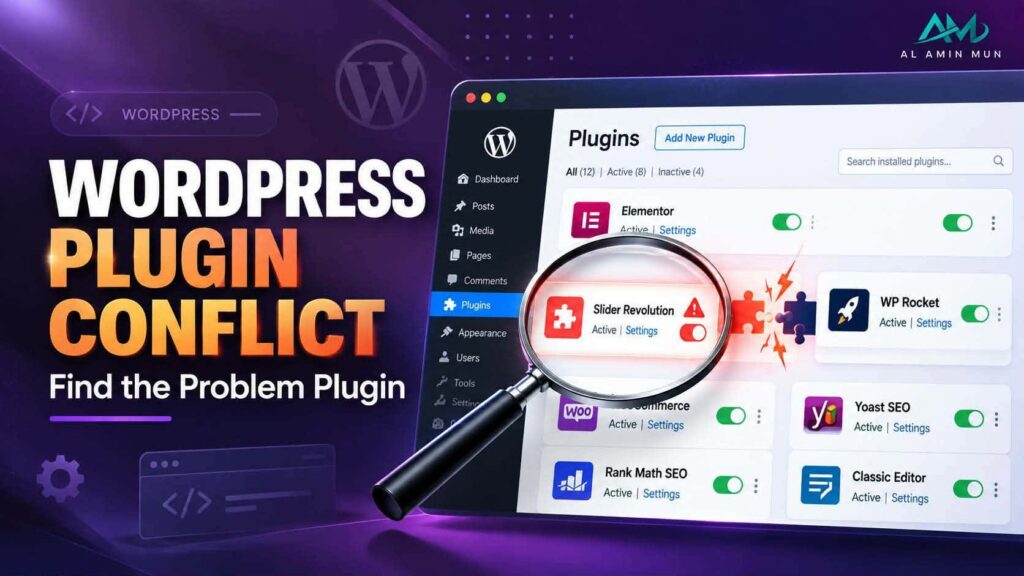
A WordPress plugin conflict can cause unexpected errors, broken layouts, missing features, slow performance, or even make your website inaccessible. Since most WordPress websites use several plugins, finding the exact cause is not always straightforward.
Fortunately, you can usually identify the problematic plugin by following a systematic troubleshooting process. In this guide, you’ll learn how to find, test, and fix a WordPress plugin conflict without making unnecessary changes to your website.
What Is a WordPress Plugin Conflict?
A WordPress plugin conflict occurs when two or more plugins interfere with each other or when a plugin conflicts with your WordPress theme, WordPress core, PHP version, or another component of your website.
For example, two plugins may try to load or modify the same JavaScript library. This can cause buttons, forms, menus, checkout features, or other website functions to stop working.
Common signs of a plugin conflict include:
- A page suddenly stops working
- A WordPress critical error appears
- Buttons or menus stop responding
- Forms fail to submit
- Website layouts become broken
- The WordPress dashboard behaves unexpectedly
- CSS or JavaScript fails to load
- Your website becomes unusually slow
- An error appears after installing or updating a plugin
What Causes Plugin Conflicts?
Several situations can lead to plugin compatibility problems.
Plugins With Similar Functions
Using multiple plugins that perform the same task can create conflicts. This commonly happens with caching, security, optimization, SEO, backup, and page-building plugins.
Outdated Plugins
An outdated plugin may use code that is incompatible with the latest WordPress version, PHP version, theme, or other plugins.
Plugin Updates
Sometimes a conflict begins immediately after a plugin update. A new version may introduce changes that don’t work correctly with another plugin or your current theme.
WordPress or PHP Updates
Updating WordPress or PHP can expose compatibility problems in older plugins that previously worked without issues.
How to Find a WordPress Plugin Conflict
1. Create a Backup First
Before troubleshooting, create a complete backup of your website. Your backup should include your WordPress files and database.
This gives you a recovery option if a troubleshooting change causes another problem.
2. Identify When the Problem Started
Think about what changed before the issue appeared.
Ask yourself:
- Did you install a new plugin?
- Did you update a plugin?
- Did you update WordPress?
- Did you change your theme?
- Did your hosting provider change the PHP version?
- Did you add custom code?
If the problem appeared immediately after a particular change, start your investigation there.
3. Deactivate Your Plugins
If you can access the WordPress dashboard, go to Plugins → Installed Plugins and temporarily deactivate your plugins.
Then check the page or feature that was causing the problem.
If the problem disappears after disabling the plugins, this is a strong indication that a plugin is involved.
However, don’t automatically assume the most recently installed plugin is responsible. The problem may result from an interaction between two plugins.
4. Reactivate Plugins One at a Time
Reactivate your plugins individually and test the website after each activation.
For example:
- Activate Plugin A and test the website.
- Activate Plugin B and test again.
- Activate Plugin C and test again.
- Continue until the problem returns.
When the issue reappears, the last plugin you activated becomes a strong candidate for further investigation.
If you have dozens of plugins, you can test groups of plugins instead of activating every plugin individually. Once you identify the problematic group, narrow it down by testing individual plugins.
5. Test the Theme
A plugin may conflict with your theme rather than another plugin.
Temporarily switch to a standard WordPress theme and test the affected functionality. If the problem disappears, the theme may be involved.
Before changing your theme on a live website, consider using a staging environment so visitors don’t see unexpected changes.
6. Check Browser Console Errors
Some plugin conflicts involve JavaScript rather than PHP.
Open your browser’s developer tools and check the Console tab while reproducing the problem.
Look for errors involving:
- JavaScript files
- jQuery
- AJAX requests
- Failed scripts
- Undefined functions
- Blocked resources
If an error references a specific plugin directory or script, it can provide a useful clue about the source of the problem.
7. Check WordPress and Hosting Error Logs
PHP conflicts may appear in your WordPress or hosting error logs.
Look for messages involving:
- PHP fatal errors
- Undefined functions
- Deprecated functions
- Memory errors
- Missing files
- Class or function conflicts
Error logs can sometimes identify the exact plugin file causing the problem.
Avoid displaying detailed PHP errors publicly on a production website. Use appropriate logging and debugging settings while troubleshooting.
What If You Can’t Access WordPress Admin?
A serious plugin conflict can sometimes prevent you from accessing the WordPress dashboard.
If that happens, you may be able to disable plugins through your hosting file manager or FTP. The standard plugin directory is:
/wp-content/plugins/
Temporarily renaming the plugins directory can prevent WordPress from loading the plugins. Once you regain access, restore the directory name and investigate the plugins individually.
If you’re uncomfortable modifying WordPress files, ask your hosting provider or WordPress developer for assistance.
How to Fix the Conflict
After identifying the problematic plugin, choose a solution based on the cause.
Update the plugin: Check whether a newer version fixes the compatibility issue.
Roll back the update: If the problem started after an update, temporarily returning to a previous compatible version may help while waiting for a fix.
Replace the plugin: If the plugin is outdated or consistently causes problems, consider an actively maintained alternative.
Remove duplicate functionality: If two plugins perform the same task, determine whether you really need both.
Contact the developer: Provide the plugin version, WordPress version, PHP version, error message, theme information, and steps to reproduce the problem.
How to Prevent Plugin Conflicts
You can reduce future conflicts by following a few basic practices:
- Keep WordPress, plugins, and themes updated.
- Remove plugins you no longer use.
- Avoid plugins with overlapping functionality.
- Test major updates on a staging website.
- Keep regular backups.
- Check plugin compatibility before installation.
- Monitor your website after major updates.
Conclusion
A WordPress plugin conflict can seem difficult to diagnose, but a systematic approach makes the process much easier.
Start with a backup, identify when the problem began, deactivate plugins, and reactivate them systematically. If necessary, investigate your theme, browser console, and error logs.
Once you identify the conflicting plugin, you can update, configure, roll back, replace, or remove it. The most important rule is to change one thing at a time so you know exactly which change solved the problem.
A WordPress plugin conflict can cause unexpected errors, broken layouts, missing features, slow performance, or even make your website inaccessible. Since most WordPress websites use several plugins, finding the exact cause is not always straightforward.
Fortunately, you can usually identify the problematic plugin by following a systematic troubleshooting process. In this guide, you’ll learn how to find, test, and fix a WordPress plugin conflict without making unnecessary changes to your website.
What Is a WordPress Plugin Conflict?
A WordPress plugin conflict occurs when two or more plugins interfere with each other or when a plugin conflicts with your WordPress theme, WordPress core, PHP version, or another component of your website.
For example, two plugins may try to load or modify the same JavaScript library. This can cause buttons, forms, menus, checkout features, or other website functions to stop working.
Common signs of a plugin conflict include:
- A page suddenly stops working
- A WordPress critical error appears
- Buttons or menus stop responding
- Forms fail to submit
- Website layouts become broken
- The WordPress dashboard behaves unexpectedly
- CSS or JavaScript fails to load
- Your website becomes unusually slow
- An error appears after installing or updating a plugin
What Causes Plugin Conflicts?
Several situations can lead to plugin compatibility problems.
Plugins With Similar Functions
Using multiple plugins that perform the same task can create conflicts. This commonly happens with caching, security, optimization, SEO, backup, and page-building plugins.
Outdated Plugins
An outdated plugin may use code that is incompatible with the latest WordPress version, PHP version, theme, or other plugins.
Plugin Updates
Sometimes a conflict begins immediately after a plugin update. A new version may introduce changes that don’t work correctly with another plugin or your current theme.
WordPress or PHP Updates
Updating WordPress or PHP can expose compatibility problems in older plugins that previously worked without issues.
How to Find a WordPress Plugin Conflict
1. Create a Backup First
Before troubleshooting, create a complete backup of your website. Your backup should include your WordPress files and database.
This gives you a recovery option if a troubleshooting change causes another problem.
2. Identify When the Problem Started
Think about what changed before the issue appeared.
Ask yourself:
- Did you install a new plugin?
- Did you update a plugin?
- Did you update WordPress?
- Did you change your theme?
- Did your hosting provider change the PHP version?
- Did you add custom code?
If the problem appeared immediately after a particular change, start your investigation there.
3. Deactivate Your Plugins
If you can access the WordPress dashboard, go to Plugins → Installed Plugins and temporarily deactivate your plugins.
Then check the page or feature that was causing the problem.
If the problem disappears after disabling the plugins, this is a strong indication that a plugin is involved.
However, don’t automatically assume the most recently installed plugin is responsible. The problem may result from an interaction between two plugins.
4. Reactivate Plugins One at a Time
Reactivate your plugins individually and test the website after each activation.
For example:
- Activate Plugin A and test the website.
- Activate Plugin B and test again.
- Activate Plugin C and test again.
- Continue until the problem returns.
When the issue reappears, the last plugin you activated becomes a strong candidate for further investigation.
If you have dozens of plugins, you can test groups of plugins instead of activating every plugin individually. Once you identify the problematic group, narrow it down by testing individual plugins.
5. Test the Theme
A plugin may conflict with your theme rather than another plugin.
Temporarily switch to a standard WordPress theme and test the affected functionality. If the problem disappears, the theme may be involved.
Before changing your theme on a live website, consider using a staging environment so visitors don’t see unexpected changes.
6. Check Browser Console Errors
Some plugin conflicts involve JavaScript rather than PHP.
Open your browser’s developer tools and check the Console tab while reproducing the problem.
Look for errors involving:
- JavaScript files
- jQuery
- AJAX requests
- Failed scripts
- Undefined functions
- Blocked resources
If an error references a specific plugin directory or script, it can provide a useful clue about the source of the problem.
7. Check WordPress and Hosting Error Logs
PHP conflicts may appear in your WordPress or hosting error logs.
Look for messages involving:
- PHP fatal errors
- Undefined functions
- Deprecated functions
- Memory errors
- Missing files
- Class or function conflicts
Error logs can sometimes identify the exact plugin file causing the problem.
Avoid displaying detailed PHP errors publicly on a production website. Use appropriate logging and debugging settings while troubleshooting.
What If You Can’t Access WordPress Admin?
A serious plugin conflict can sometimes prevent you from accessing the WordPress dashboard.
If that happens, you may be able to disable plugins through your hosting file manager or FTP. The standard plugin directory is:
/wp-content/plugins/
Temporarily renaming the plugins directory can prevent WordPress from loading the plugins. Once you regain access, restore the directory name and investigate the plugins individually.
If you’re uncomfortable modifying WordPress files, ask your hosting provider or WordPress developer for assistance.
How to Fix the Conflict
After identifying the problematic plugin, choose a solution based on the cause.
Update the plugin: Check whether a newer version fixes the compatibility issue.
Roll back the update: If the problem started after an update, temporarily returning to a previous compatible version may help while waiting for a fix.
Replace the plugin: If the plugin is outdated or consistently causes problems, consider an actively maintained alternative.
Remove duplicate functionality: If two plugins perform the same task, determine whether you really need both.
Contact the developer: Provide the plugin version, WordPress version, PHP version, error message, theme information, and steps to reproduce the problem.
How to Prevent Plugin Conflicts
You can reduce future conflicts by following a few basic practices:
- Keep WordPress, plugins, and themes updated.
- Remove plugins you no longer use.
- Avoid plugins with overlapping functionality.
- Test major updates on a staging website.
- Keep regular backups.
- Check plugin compatibility before installation.
- Monitor your website after major updates.
Conclusion
A WordPress plugin conflict can seem difficult to diagnose, but a systematic approach makes the process much easier.
Start with a backup, identify when the problem began, deactivate plugins, and reactivate them systematically. If necessary, investigate your theme, browser console, and error logs.
Once you identify the conflicting plugin, you can update, configure, roll back, replace, or remove it. The most important rule is to change one thing at a time so you know exactly which change solved the problem.
Explore More..