
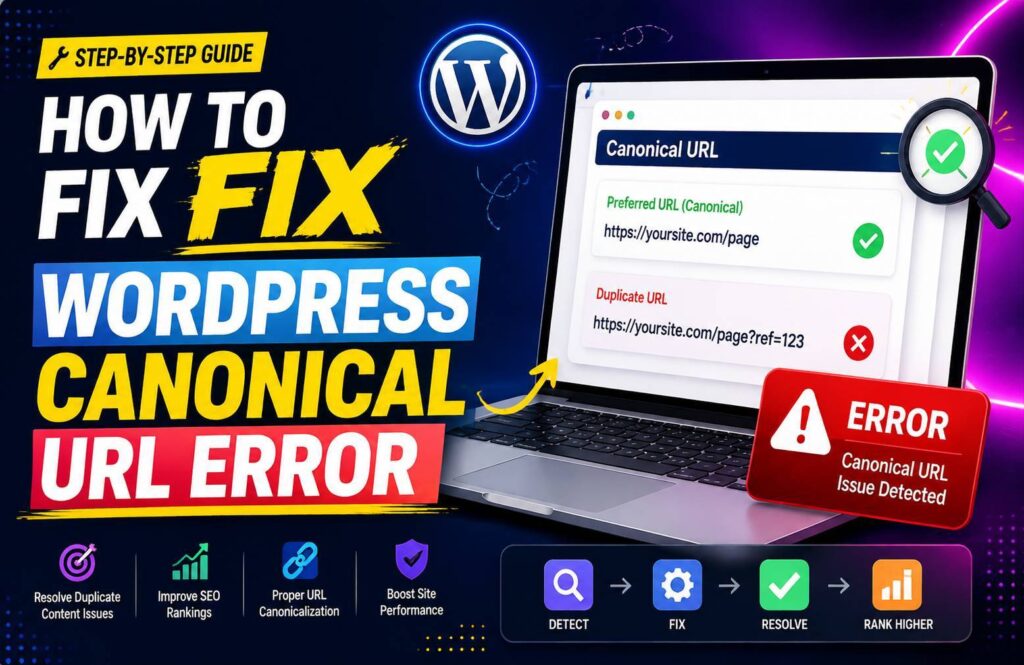
A WordPress canonical URL error can prevent search engines from understanding which version of a page should appear in search results. When multiple URLs show similar or identical content, Google may choose the wrong URL or ignore your preferred page.
Fortunately, most canonical problems can be identified and fixed without advanced technical knowledge.
What Is a Canonical URL?
A canonical URL tells search engines which URL should be considered the primary version of a page when multiple URLs contain similar content.
For example, these URLs might potentially display the same page:
- example.com/blog/
- example.com/blog/?source=facebook
- example.com/blog/?utm_campaign=social
A canonical tag helps Google understand that the main URL is:
example.com/blog/
This is especially useful for websites that use tracking parameters, filters, pagination, or different URL variations.
What Causes WordPress Canonical URL Errors?
There are several reasons a canonical URL can be incorrect or missing.
1. Incorrect Canonical Tags
Your page may point to a canonical URL that does not match the preferred version. For example, a page may accidentally reference an old URL, another page, or a URL with an incorrect protocol.
2. HTTP and HTTPS Versions
If your website is available through both HTTP and HTTPS, search engines may discover two versions of the same page.
For example:
http://example.com/page/
and
https://example.com/page/
Your preferred version should normally be the HTTPS URL if your website uses SSL.
3. WWW and Non-WWW URLs
Another common issue occurs when both versions are accessible:
https://www.example.com/
and
https://example.com/
Your website should have one preferred domain version, with redirects and canonical tags supporting that choice.
4. Duplicate or Similar Content
WordPress can generate different URL variations through categories, tags, archives, parameters, and other features. If these pages contain similar content, search engines may have difficulty determining which URL deserves priority.
5. SEO Plugin Configuration
SEO plugins can automatically generate canonical tags. Incorrect settings, conflicting plugins, or custom configurations can sometimes result in an unexpected canonical URL.
How to Check Your Canonical URL
Before fixing anything, identify what canonical URL Google and your website are currently using.
Open the page you want to check and view its source code.
Search for:
rel=”canonical”
You may find something similar to:
<link rel=”canonical” href=”https://example.com/page/” />
The URL inside the href attribute is the page’s canonical URL.
You can also use Google Search Console to inspect a URL and see how Google has interpreted the page’s canonicalization.
How to Fix a WordPress Canonical URL Error
Step 1: Choose the Preferred URL
First, decide which URL should appear in search results.
Check the following:
- HTTPS is enabled
- Your preferred domain is consistent
- The URL is accessible
- The page contains the original content
- The URL is not unnecessarily redirected
Avoid changing URLs repeatedly because unnecessary changes can create additional SEO problems.
Step 2: Check Your SEO Plugin
If you’re using an SEO plugin such as Yoast SEO or Rank Math, open the affected page and look for its canonical URL settings.
In most cases, the canonical URL should point to the page’s own preferred URL.
For example:
https://example.com/wordpress-seo-guide/
You should normally have a canonical pointing to that same URL.
If you have intentionally created a different canonical relationship, make sure the target URL is correct and accessible.
Step 3: Fix HTTP/HTTPS Conflicts
Make sure your WordPress website consistently uses HTTPS.
Check Settings → General in WordPress and verify that both the WordPress Address and Site Address use the correct HTTPS version.
You should also ensure your hosting configuration redirects HTTP traffic to HTTPS.
Step 4: Choose One Domain Version
Decide whether your preferred website URL uses www or non-www.
For example:
https://example.com
or
https://www.example.com
Both can work, but consistency matters. Your redirects, internal links, sitemap, and canonical tags should support the same preferred version.
Step 5: Check Internal Links
Internal links can reinforce which URL you want search engines to recognize.
Avoid linking to multiple versions of the same page. Instead, consistently use the preferred canonical URL in navigation menus, blog posts, category pages, and other internal content.
This also helps search engines understand your site’s structure.
Step 6: Check Your XML Sitemap
Your XML sitemap should generally contain the URLs you want search engines to index.
If your sitemap includes URLs that redirect, are blocked, or have canonical tags pointing elsewhere, review the configuration.
Keeping your sitemap clean can help search engines crawl your preferred URLs more efficiently.
Step 7: Remove Conflicting Canonical Tags
A page should not have multiple conflicting canonical tags.
This can happen when two SEO or optimization plugins attempt to add their own canonical information.
If you discover more than one canonical tag in the source code, identify which plugin or theme is generating each one and remove the unnecessary configuration.
What If Google Ignores Your Canonical URL?
Adding a canonical tag does not guarantee that Google will always follow it.
Google may choose a different canonical URL when it determines that another version is more appropriate. This can happen because of duplicate content, inconsistent internal links, redirects, sitemap signals, or differences between pages.
To strengthen your preferred URL:
- Use consistent internal links
- Include the preferred URL in your sitemap
- Redirect unnecessary duplicate URLs
- Keep similar pages meaningfully different
- Use the same preferred HTTPS/domain version
- Make sure the canonical URL returns a successful response
Canonicalization works best when all these signals point toward the same URL.
How to Prevent Future Canonical Problems
Regular technical SEO checks can help you catch canonical issues early.
After publishing or changing important pages, check the canonical tag and make sure the URL is correct. Keep your SEO plugins updated and avoid installing multiple plugins that perform the same SEO functions.
You should also monitor Google Search Console for indexing and canonicalization issues.
Conclusion
A WordPress canonical URL error can make it harder for search engines to understand which version of your content should be indexed. The solution usually involves checking your canonical tag, HTTPS configuration, domain version, internal links, sitemap, redirects, and SEO plugin settings.
The key is consistency. When your canonical tags, internal links, sitemap, and redirects all point toward the same preferred URL, you give search engines much clearer signals about your website’s structure and content.