

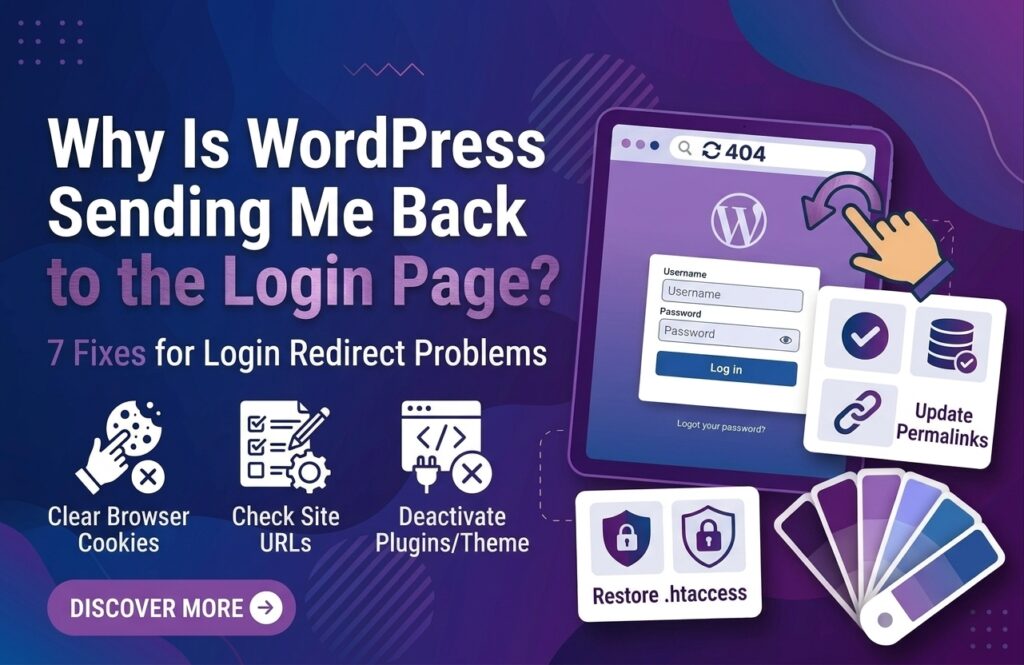
Have you ever entered your WordPress username and password, clicked Log In, and suddenly ended up back on the login page? If so, you’re dealing with a common WordPress login redirect loop.
This problem can prevent you from accessing your WordPress dashboard even when your login credentials are correct. In many cases, the issue is caused by corrupted cookies, incorrect WordPress URLs, a problematic plugin, caching, or configuration problems.
The good news is that you can usually fix the problem without rebuilding your website.
In this guide, you’ll learn 7 practical ways to fix WordPress login redirect problems and regain access to your dashboard.
What Causes WordPress to Keep Redirecting to Login?
When WordPress keeps sending you back to the login page, the website may be unable to properly authenticate your session.
Common causes include:
- Corrupted browser cookies
- Incorrect WordPress or site URL
- Conflicting plugins
- Caching problems
- Incorrect HTTPS settings
- Corrupted .htaccess rules
- Theme or server configuration conflicts
Try the following fixes one at a time.
1. Clear Your Browser Cookies and Cache
One of the easiest solutions is to clear your browser’s cookies.
WordPress uses cookies to remember that you’ve successfully logged in. If those cookies become corrupted or outdated, WordPress may repeatedly send you back to the login screen.
First, open your website in an incognito or private browser window and try logging in.
If you can log in successfully, clear your browser’s cookies and cached files for your website.
Then close and reopen the browser and try again.
This simple step can solve many temporary WordPress login redirect problems.
2. Check Your WordPress and Site URLs
Incorrect website URLs can cause WordPress to continuously redirect between different versions of your site.
Go to:
Settings → General
Check these two fields:
- WordPress Address (URL)
- Site Address (URL)
They should normally use the same domain and protocol.
For example:
https://example.com
Avoid having one URL use http:// while the other uses https:// unless your setup specifically requires it.
If you cannot access the WordPress dashboard, you can temporarily define the URLs inside your wp-config.php file:
define(‘WP_HOME’, ‘https://example.com’);
define(‘WP_SITEURL’, ‘https://example.com’);
Replace example.com with your actual domain.
3. Disable Your WordPress Plugins
A plugin conflict is another common reason WordPress keeps redirecting to login.
Security, caching, redirect, membership, and login-related plugins can sometimes interfere with WordPress authentication.
If you recently installed or updated a plugin before the problem started, that plugin should be your first suspect.
If you cannot access your dashboard, use your hosting File Manager or FTP.
Navigate to:
wp-content/plugins/
Rename the plugins folder to something like:
plugins-disabled
Then try logging in again.
If you can access your dashboard after doing this, rename the folder back to plugins and activate your plugins one at a time to identify the conflicting plugin.
4. Check Your HTTPS and SSL Configuration
Incorrect SSL configuration can create redirect problems.
For example, your website may be configured to use HTTPS while WordPress or your server still detects requests as HTTP.
This can become especially problematic when you use:
- SSL plugins
- Cloudflare
- Reverse proxies
- Managed WordPress hosting
- Server-level HTTPS redirects
Make sure your website consistently loads using the correct HTTPS version.
Also check whether your hosting provider or CDN is applying an additional redirect.
If you’re using Cloudflare, review your SSL/TLS settings and make sure they match your hosting configuration.
5. Delete or Reset the .htaccess File
A corrupted or incorrectly configured .htaccess file can cause unexpected redirects.
Before changing the file, create a backup.
Using your hosting File Manager or FTP, locate:
.htaccess
Rename it temporarily to something like:
.htaccess-backup
Then try accessing your WordPress login page again.
If the login problem disappears, your .htaccess rules may have been responsible.
Once you regain dashboard access, go to:
Settings → Permalinks
You don’t necessarily need to change anything. Simply clicking Save Changes can regenerate the default WordPress rewrite rules.
6. Clear Website and Server Caches
Caching can sometimes preserve outdated login or redirect information.
If you’re using a caching plugin, clear its cache.
Also clear caches from services such as:
- Your hosting provider
- CDN
- Cloudflare
- WordPress caching plugins
- Server-side caching systems
After clearing the cache, open your website in a private browser window and try logging in again.
Remember that logged-in WordPress pages should generally not be served from a normal page cache.
7. Check Your WordPress Configuration and Server Setup
If none of the previous solutions work, the problem may be related to your server configuration or WordPress files.
Check whether your hosting environment recently changed.
For example, login problems can appear after:
- Changing hosting providers
- Moving a website to a new server
- Changing the domain
- Installing an SSL certificate
- Changing PHP versions
- Modifying server redirects
You should also check your WordPress error logs and hosting error logs for clues.
If you recently migrated your website, verify that the database URLs, domain configuration, SSL setup, and redirect rules are all correct.
How to Prevent WordPress Login Redirect Problems
Once you’ve fixed the issue, take a few steps to reduce the chance of it happening again.
Keep WordPress, plugins, and themes updated. Avoid installing multiple plugins that perform similar functions, especially caching or redirect plugins.
Before making major changes to your website, create a backup.
It’s also a good idea to monitor your website after:
- Hosting migrations
- Domain changes
- SSL changes
- Plugin updates
- PHP version changes
These precautions can help you identify configuration problems before they prevent dashboard access.
Conclusion
If WordPress keeps redirecting to login, don’t immediately assume that your username or password is wrong. The problem is often related to cookies, URLs, plugins, caching, SSL, .htaccess, or server configuration.
Start with the simplest solutions, such as clearing cookies and checking your website URLs. If those don’t work, move on to plugins, SSL, caching, .htaccess, and server configuration.
In most cases, identifying the change that caused the redirect loop is the fastest way to find the right solution.
With these seven fixes, you should be able to troubleshoot the problem and get back into your WordPress dashboard without rebuilding your website.