

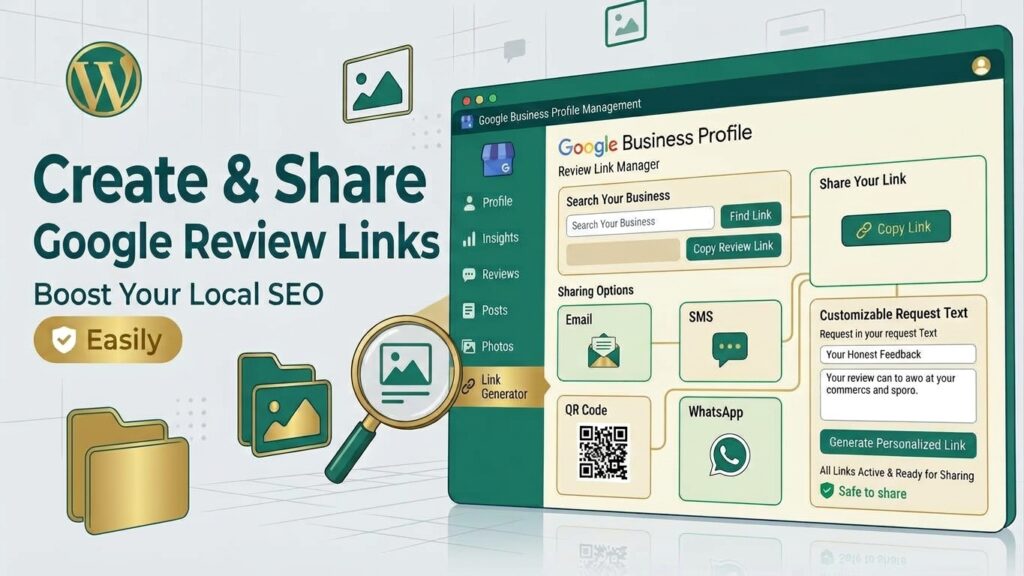
Getting genuine customer reviews can help build trust and make your business more attractive to potential customers. But some customers may not know where to leave a review or may find the process inconvenient.
A Google Business Profile review link makes the process easier by taking customers directly to the place where they can submit a Google review. You can share the link through email, text messages, WhatsApp, your website, receipts, or other customer communication channels.
In this guide, you’ll learn how to create a Google review link, share it with customers, and use it responsibly as part of your local SEO strategy.
What Is a Google Business Profile Review Link?
A Google Business Profile review link is a URL that directs customers to your business’s Google review interface. When a customer opens the link, they can see your Business Profile and, where available, the option to rate the business and write a review.
Instead of asking customers to search for your business on Google and find the correct listing themselves, you can give them a direct path to the review process.
This can be particularly useful for restaurants, service businesses, healthcare practices, retail stores, contractors, and other businesses that depend on local customers.
Why Create a Google Business Profile Review Link?
A direct review link can make it easier for satisfied customers to leave feedback.
Some benefits include:
- Less friction: Customers do not have to search for your business manually.
- Easy sharing: You can use the same link in emails, messages, and printed materials.
- Better customer experience: Customers can reach your review page more quickly.
- Review-request campaigns: Businesses can include the link in post-purchase or follow-up messages.
- Local SEO support: Genuine reviews can contribute to the overall quality and trust signals associated with a local business.
However, a review link does not guarantee more reviews. Customers still decide whether they want to leave feedback.
How to Create a Google Business Profile Review Link
Google provides ways for businesses to access and share their review-request link from their Business Profile.
Step 1: Sign in to the Google Account Managing Your Business
Sign in to the Google Account that manages your Google Business Profile.
Make sure you are using an account with the appropriate access to manage the business profile.
Step 2: Find Your Business Profile on Google
Search for your business name on Google while signed in to the account that manages the profile.
Your Business Profile management options should appear in Google Search if the profile is eligible and connected to your account.
Step 3: Find the Review Request Option
Look for the option that allows you to ask customers for reviews or share a review link.
Google may change the wording or placement of Business Profile management options over time, so the exact interface can vary.
Step 4: Copy the Review Link
Copy the review link provided by Google.
Before distributing it widely, open the link in a separate browser or incognito window and check that it takes customers to the correct business profile and review experience.
How to Share Your Google Review Link With Customers
Once you have your Google Business Profile review link, you can use it across several customer touchpoints.
Include the review link in a short follow-up email after a purchase or completed service.
For example, you could thank the customer for their business and politely invite them to share honest feedback on Google.
SMS or Text Messages
For businesses that communicate with customers by text, a short message can make the review process convenient.
Keep the message brief and avoid sending repeated requests that could annoy customers.
Businesses that already use WhatsApp for customer communication can share the review link after completing a service or purchase.
The request should be natural and optional rather than pressuring the customer.
Website
You can add a review request or “Leave us a Google review” button to an appropriate section of your website.
For example, you could place it on a thank-you page, customer resources page, or contact section.
QR Code
You can also turn your Google review link into a QR code.
A customer can scan the code using their phone and access the review page without manually typing a URL.
This can be useful for storefronts, restaurants, appointment-based businesses, packaging, receipts, and printed cards.
How to Ask Customers for Google Reviews
The best review requests are simple, timely, and honest.
Instead of saying:
“Please leave us a 5-star review.”
Use neutral language such as:
“We’d appreciate your honest feedback. If you have a moment, you can share your experience on Google.”
This allows the customer to provide their genuine opinion.
Good times to request a review may include:
- After successfully completing a service
- Shortly after a purchase
- After resolving a customer’s issue
- Following a completed appointment
- After a customer expresses satisfaction
- After delivering a product or project
Avoid Review Manipulation
A review strategy should focus on genuine customer experiences rather than artificially increasing ratings.
Avoid practices such as:
- Buying Google reviews
- Creating fake customer accounts
- Asking employees to pretend to be customers
- Offering rewards specifically for positive reviews
- Asking customers to change a review in exchange for compensation
- Pressuring customers to leave a particular rating
- Posting reviews on behalf of customers
Instead, make it easy for real customers to share honest feedback.
What If Your Google Review Link Is Not Working?
If your review link does not work correctly, check the following:
Check the Business Profile
Make sure the link points to the correct business and that the Business Profile is active.
Test the Link
Open the link in a private or incognito browser window. This can help you determine whether the issue is related to your Google account or the link itself.
Check Business Information
Confirm that your business name, location, and other important profile information are correct.
Check for Profile Issues
If the Business Profile is suspended, restricted, or otherwise unavailable, customers may not be able to use the review process normally.
Create a Fresh Link
If you generated the link a long time ago, return to your Business Profile and obtain the current review-request link rather than relying on an old URL.
Best Practices for Using a Google Review Link
A review link works best when it becomes part of a broader customer experience rather than being used as a standalone SEO tactic.
Follow these practices:
- Ask real customers. Focus on people who have actually purchased from or interacted with your business.
- Keep requests natural. A short, polite request is usually better than a long message.
- Make the link easy to access. Use it where customers already communicate with your business.
- Ask at the right time. Request feedback after a meaningful customer interaction.
- Don’t demand positive reviews. Customers should be free to provide honest feedback.
- Respond to reviews. Thank customers for positive feedback and address legitimate concerns professionally.
- Monitor your profile regularly. Keep your business information accurate and up to date.
Frequently Asked Questions
Can I create a direct Google review link for my business?
Yes. Businesses can access a review-request option through their Google Business Profile and share the resulting link with customers.
Can I put my Google review link on my website?
Yes. You can add a Google review link to an appropriate location on your website, such as a customer resources page or review section.
Can I send my Google review link by SMS?
Yes. You can share your review link through SMS or other customer communication channels, provided your communication practices comply with applicable laws and platform rules.
Does a Google review link improve local rankings?
A review link itself is not a direct ranking shortcut. Its main purpose is to make it easier for customers to leave genuine feedback. Reviews and other Business Profile factors can contribute to a business’s overall local search presence.
Should I ask customers for five-star reviews?
It is better to ask for honest feedback rather than requesting a specific rating. Customers should be free to describe their actual experience.
Conclusion
Creating a Google Business Profile review link is a simple way to reduce the friction involved in asking customers for feedback. Once you have the link, you can share it through email, SMS, WhatsApp, your website, QR codes, and other customer communication channels.
The goal should not simply be to collect more reviews. Instead, focus on delivering a good customer experience and making it easy for genuine customers to share their honest opinions. Combined with accurate Business Profile information and consistent local SEO practices, a straightforward review-request process can become a useful part of your local marketing strategy.