

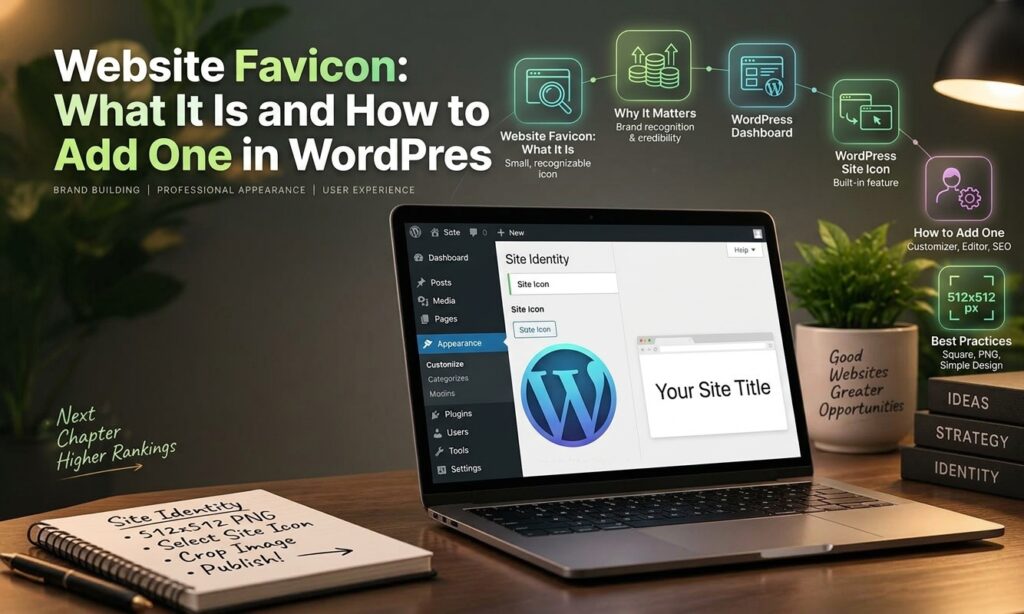
Website Favicon: What It Is and How to Add One in WordPress
A WordPress favicon is a small icon that represents your website in browser tabs, bookmarks, and other supported browser interfaces. It helps visitors recognize your website quickly and creates a more consistent brand identity. If you have a WordPress website, adding a favicon is a simple way to make your site look more professional.
In this guide, you’ll learn what a favicon is, why it matters, how to add one in WordPress, and how to fix common favicon issues.
What Is a Website Favicon?
A favicon, short for favorite icon, is a small image associated with a website. It usually appears beside the page title in a browser tab and may also appear in bookmarks and browsing history.
For example, a website might use its company logo, a letter from its brand name, or a simple symbol as its favicon. The image should remain recognizable even when displayed at a small size.
WordPress allows you to upload a Site Icon through its built-in settings, so you usually don’t need an additional plugin to add a favicon.
Why Is a Favicon Important for WordPress Websites?
A favicon may seem like a minor design element, but it can improve the overall presentation and usability of your website.
1. Improves brand recognition
A recognizable favicon helps visitors identify your website among multiple open browser tabs. Using a consistent icon that matches your brand can make your website easier to remember.
2. Creates a professional appearance
A website with a properly configured favicon looks more complete. It shows attention to small but important details in website design.
3. Supports a better user experience
Visitors who bookmark your website may find it easier to recognize when the browser displays its favicon. This is particularly helpful for people who frequently revisit your content.
4. Supports website branding in search results
Google may display a favicon next to your website in mobile search results. However, displaying a favicon in search results is not guaranteed, and adding one does not directly improve your search rankings.
How to Add a Favicon in WordPress
You can add a WordPress favicon using the built-in Site Icon feature. The exact steps depend on your WordPress theme and version.
Method 1: Add a Favicon Through the WordPress Customizer
Use this method if your theme supports the Customizer.
- Log in to your WordPress dashboard.
- Navigate to Appearance → Customize.
- Open Site Identity.
- Find the Site Icon option.
- Click Select Site Icon and upload your image.
- Crop the image if WordPress requests it.
- Click Publish to save your changes.
After publishing, open your website in a new browser tab and check whether the favicon appears.
Method 2: Add a Favicon Using the WordPress Site Editor
Some block themes use the Site Editor instead of the traditional Customizer.
- Log in to your WordPress dashboard.
- Navigate to Appearance → Editor.
- Open the available site settings or template options.
- Look for the Site Identity or Site Icon setting, if your theme exposes it.
- Upload or select your favicon image.
- Save the changes.
The Site Icon setting is not available in the same location in every theme. If you cannot find it in the Site Editor, check Settings → General or the theme’s documentation for the appropriate option in your installation.
Method 3: Add a Favicon Using an SEO or Website Plugin
Some plugins and website-building tools provide favicon or site identity settings. However, installing an extra plugin is usually unnecessary when WordPress’s built-in Site Icon feature meets your needs.
If you use a page builder or theme with its own favicon setting, make sure it does not conflict with the Site Icon already configured in WordPress. Avoid adding multiple competing favicon declarations.
WordPress Favicon Size and Format
Choosing a suitable image helps your favicon display clearly across different devices and browser interfaces.
Here are some practical recommendations:
- Recommended source image: A square image of at least 512 × 512 pixels for the WordPress Site Icon.
- Aspect ratio: 1:1, so the image is square.
- Image format: PNG is a practical choice for a transparent background. WordPress also supports other image formats depending on the installation and use case.
- Design: Use a simple logo, letter, or symbol that remains recognizable at a small size.
- Background: Choose a background that provides sufficient contrast with the icon.
WordPress recommends a Site Icon image of at least 512 × 512 pixels. Browsers and search engines may use different favicon sizes or formats, so a larger square source image gives WordPress flexibility when generating the required assets.
How to Change or Remove a WordPress Favicon
You may want to update your favicon after changing your logo or refreshing your website’s branding.
To change it, return to the Site Icon setting, select a new image, and save your changes. WordPress will use the updated Site Icon for supported favicon output.
To remove it, open the same setting and use the available removal option. The exact control depends on your WordPress interface.
After changing or removing the icon, clear your website cache if necessary. You may also need to clear your browser cache because browsers can retain previously loaded favicons.
How to Fix a WordPress Favicon Not Showing
Sometimes a favicon does not appear immediately after you upload it. The following troubleshooting steps can help.
Clear Your Browser Cache
Browsers may continue displaying an older favicon even after you replace it. Open your website in a private or incognito window, or clear the browser cache and check again.
Clear Your Website Cache
If you use a caching plugin, hosting cache, or CDN such as Cloudflare, clear the relevant cache after updating the Site Icon.
Check the Site Icon Setting
Return to your WordPress dashboard and confirm that the correct image is selected and your changes have been saved.
Check Your Website’s HTML
Inspect the page source or use your browser’s developer tools to look for the favicon link element. Confirm that the referenced image URL is correct and accessible.
Check for Plugin or Theme Conflicts
If your website outputs multiple favicon declarations, a theme or plugin may be overriding the expected icon. Review your theme settings and plugins to identify conflicting configuration.
Allow Time for Search Results to Update
If your favicon appears in the browser but not in Google search results, the issue may involve Google’s crawling and favicon processing. Check Google’s favicon guidelines and allow time for Google to recrawl the website. Search-result display is not guaranteed.
WordPress Favicon Best Practices
Follow these best practices when creating and managing your favicon:
- Use an icon that matches your website’s logo and brand identity.
- Keep the design simple and recognizable at small sizes.
- Start with a square image of at least 512 × 512 pixels for the WordPress Site Icon.
- Use suitable contrast so the icon remains visible against different backgrounds.
- Avoid frequently changing the favicon without a branding reason.
- Confirm that your website is accessible to browsers and search engine crawlers.
- Check your favicon on desktop and mobile browsers.
- Avoid installing unnecessary plugins solely to add a favicon.
- Follow Google’s current favicon requirements if you want your icon to appear in search results.
Frequently Asked Questions
1. What is a WordPress favicon?
A WordPress favicon is a small icon associated with your website. It can appear in browser tabs, bookmarks, and supported search interfaces to help visitors recognize your site.
2. What size should a WordPress favicon be?
A square image of at least 512 × 512 pixels is recommended for the WordPress Site Icon. Browsers and search engines may use different sizes when displaying the favicon.
3. Can I add a favicon to WordPress without a plugin?
Yes. WordPress includes a built-in Site Icon feature. You can use it through the Customizer or another supported site identity setting, depending on your theme.
4. Why is my WordPress favicon not showing?
Common reasons include browser caching, website caching, an incorrect image URL, unsaved settings, or conflicting theme and plugin configurations.
5. Does a favicon improve SEO?
A favicon is not a direct Google ranking factor. However, Google may display it in search results, where it can support brand recognition and make your website easier to identify.
6. Can I use my website logo as a favicon?
Yes. A simplified version of your logo is often a good choice. Make sure the design remains clear and recognizable when displayed at a small size.
Conclusion
Adding a favicon is a simple but valuable step in improving your WordPress website’s branding and appearance. By using the built-in Site Icon feature, you can upload a suitable image without installing an additional plugin.
Choose a clear, square image, save your settings, and check that the icon appears correctly in your browser. If it does not display immediately, review your caching settings, image URL, and theme configuration. A properly configured WordPress favicon helps visitors recognize your website and creates a more consistent browsing experience.
Explore More>>