
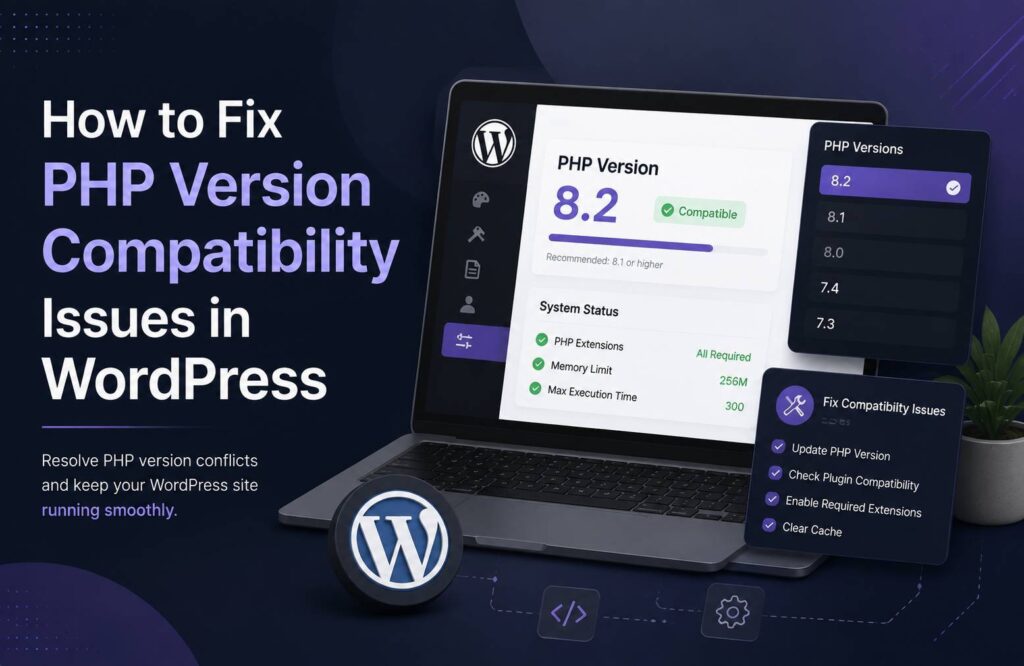
PHP plays an important role in WordPress performance, security, and functionality. When your website runs an outdated or incompatible PHP version, you may experience errors, broken plugins, theme conflicts, or even a blank screen. Understanding PHP Version Compatibility Issues issues can help you identify the cause and fix the problem without damaging your website.
What Is a PHP Version Compatibility Issue?
WordPress is built primarily with PHP, and plugins and themes also use PHP code. Each PHP version introduces new features, performance improvements, security updates, and changes to older functions.
A compatibility issue occurs when your WordPress installation, theme, or plugin uses code that does not work correctly with the PHP version configured on your hosting server.
For example, an outdated plugin may depend on an old PHP function that has been removed from newer PHP versions. After upgrading PHP, that plugin could produce warnings, fatal errors, or stop working completely.
Common Signs of PHP Compatibility Problems
Several symptoms can indicate a PHP compatibility problem:
- White screen or blank WordPress pages
- “Critical error” messages
- Plugins suddenly stop working
- Theme layouts become broken
- WordPress admin becomes inaccessible
- PHP warnings or fatal errors appear
- Forms or dynamic features stop functioning
- Website performance becomes unstable
However, these symptoms can also have other causes. Therefore, checking your PHP version and error logs is important before making changes.
How to Fix PHP Version Compatibility Issues
1. Check Your Current PHP Version
The first step is finding out which PHP version your website is using.
In WordPress, you can usually check this from Tools → Site Health → Info → Server. Look for the PHP version listed under the server information.
You can also check your hosting control panel. Many hosting providers allow you to view and change PHP versions through tools such as a PHP manager or server settings panel.
Before upgrading, check whether your WordPress version, active theme, and important plugins support the PHP version you want to use.
2. Back Up Your WordPress Website
Never change the PHP version on a production website without having a recent backup.
Your backup should include:
- WordPress files
- Database
- Themes
- Plugins
- Media uploads
- Configuration files
A complete backup gives you a recovery option if the PHP upgrade causes a compatibility problem.
For larger websites, developers should consider creating a staging environment and testing the PHP upgrade there first.
3. Update WordPress, Plugins, and Themes
Outdated WordPress components are a common source of PHP compatibility problems.
Before changing the server’s PHP version, update:
- WordPress core
- Active theme
- Plugins
- Custom code where necessary
Check the changelog and documentation of important plugins if you suspect they may not support your target PHP version.
Avoid using abandoned plugins or themes that have not received updates for a long time. Replacing unsupported software is often safer than forcing it to work with a newer PHP environment.
4. Test PHP on a Staging Website
A staging website allows developers to test changes without affecting visitors.
After creating a staging copy, switch the staging environment to the desired PHP version. Then test the most important parts of the website.
Check:
- Homepage
- Contact forms
- Login and registration
- WooCommerce checkout
- Search
- Menus
- Custom post types
- Plugin functionality
- Mobile layouts
- WordPress admin
If everything works correctly, the same PHP configuration can usually be applied to the live website.
5. Find the Plugin or Theme Causing the Error
If the website breaks after changing PHP, identify which component is responsible.
WordPress debugging can provide useful information about PHP errors. Developers can enable debugging on a staging environment and review the generated logs.
A typical process is to:
- Check the error message
- Identify the plugin, theme, or file mentioned
- Temporarily deactivate the suspected plugin
- Test the website again
- Update or replace the problematic component
If the error disappears after disabling a particular plugin, that plugin is a strong candidate for the compatibility problem.
6. Check Custom PHP Code
Not every compatibility problem comes from a plugin or theme.
Custom code added to functions.php, custom plugins, snippets, or other WordPress files can also contain outdated PHP functions or syntax.
This is where a developer can make a significant difference. Instead of randomly changing server settings, a developer can inspect the problematic code, identify deprecated functions, and update it for the supported PHP environment.
Never edit core WordPress files to solve a PHP compatibility problem because future WordPress updates can overwrite those changes.
7. Choose a Supported PHP Version
Running the newest possible PHP version is not always the right approach if your website depends on outdated software.
The goal should be to use a supported PHP version that is compatible with your WordPress installation, plugins, themes, and custom code.
Your hosting provider may offer several PHP versions through its control panel. If your website cannot work with a newer version, investigate the outdated component instead of keeping an unsupported PHP version indefinitely.
8. What If the Website Goes Down?
If your website becomes inaccessible after changing PHP, don’t panic.
First, switch back to the previously working PHP version if your hosting panel allows it. Then restore the website if necessary and investigate the error in a staging environment.
For serious problems, a developer can examine server logs, PHP error logs, plugin conflicts, and custom code to determine the exact cause.
Prevent Future PHP Compatibility Problems
Regular maintenance can significantly reduce PHP-related problems.
Keep WordPress, themes, and plugins updated, remove unused plugins, avoid abandoned software, maintain regular backups, and test major PHP upgrades before applying them to production.
For business websites, scheduled technical maintenance can also help identify compatibility problems before they cause downtime.
Conclusion
PHP version compatibility WordPress problems can cause anything from minor warnings to complete website failures. The safest approach is to identify your current PHP version, create a backup, update outdated components, test changes on staging, and investigate incompatible plugins, themes, or custom code.
If a PHP upgrade repeatedly causes errors, professional WordPress development can help identify the underlying compatibility problem and update the website safely without unnecessary downtime.